
01
Set it on a tripod
Stand your iPhone or iPad on a tripod, facing you, with your whole swing in the frame.


For iPhone and iPad
Swing, look up — there it is.
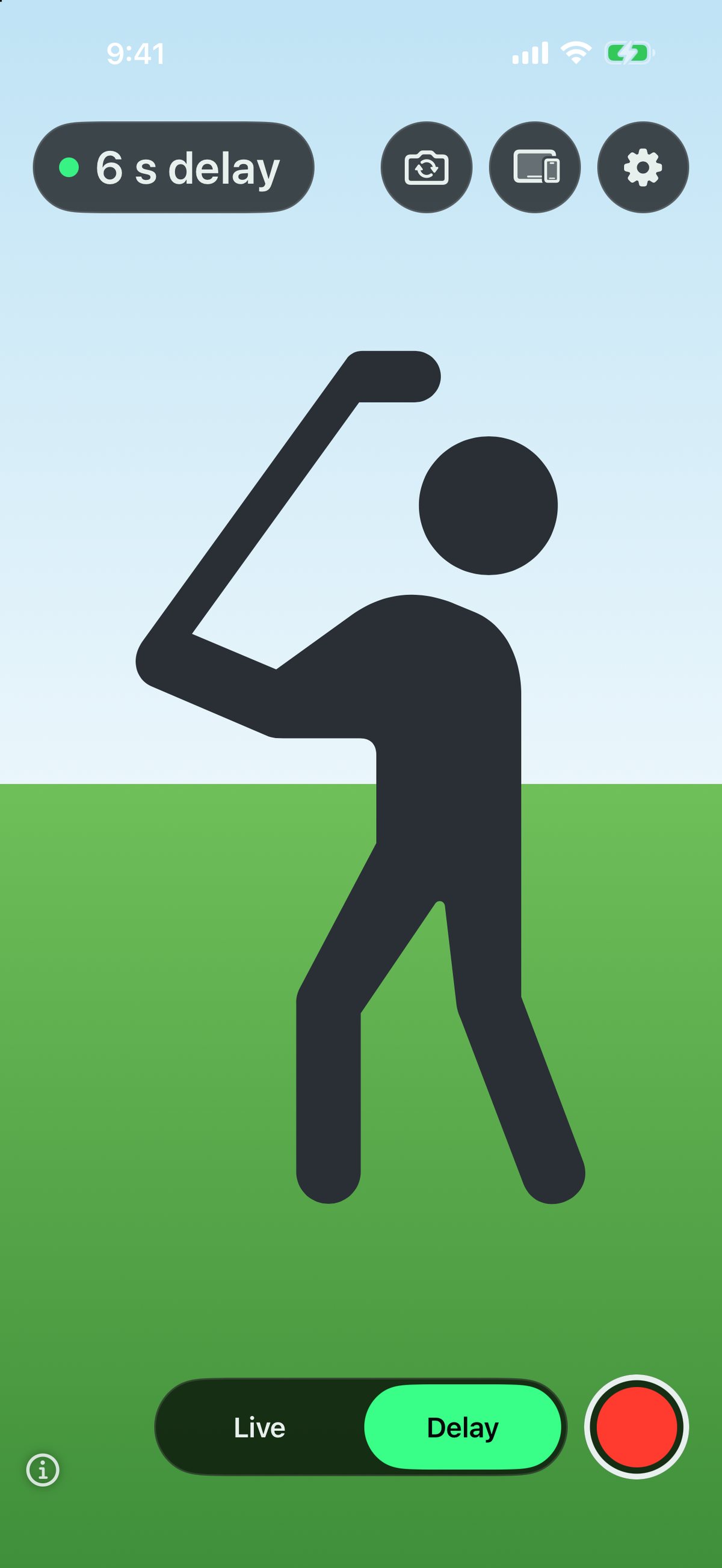
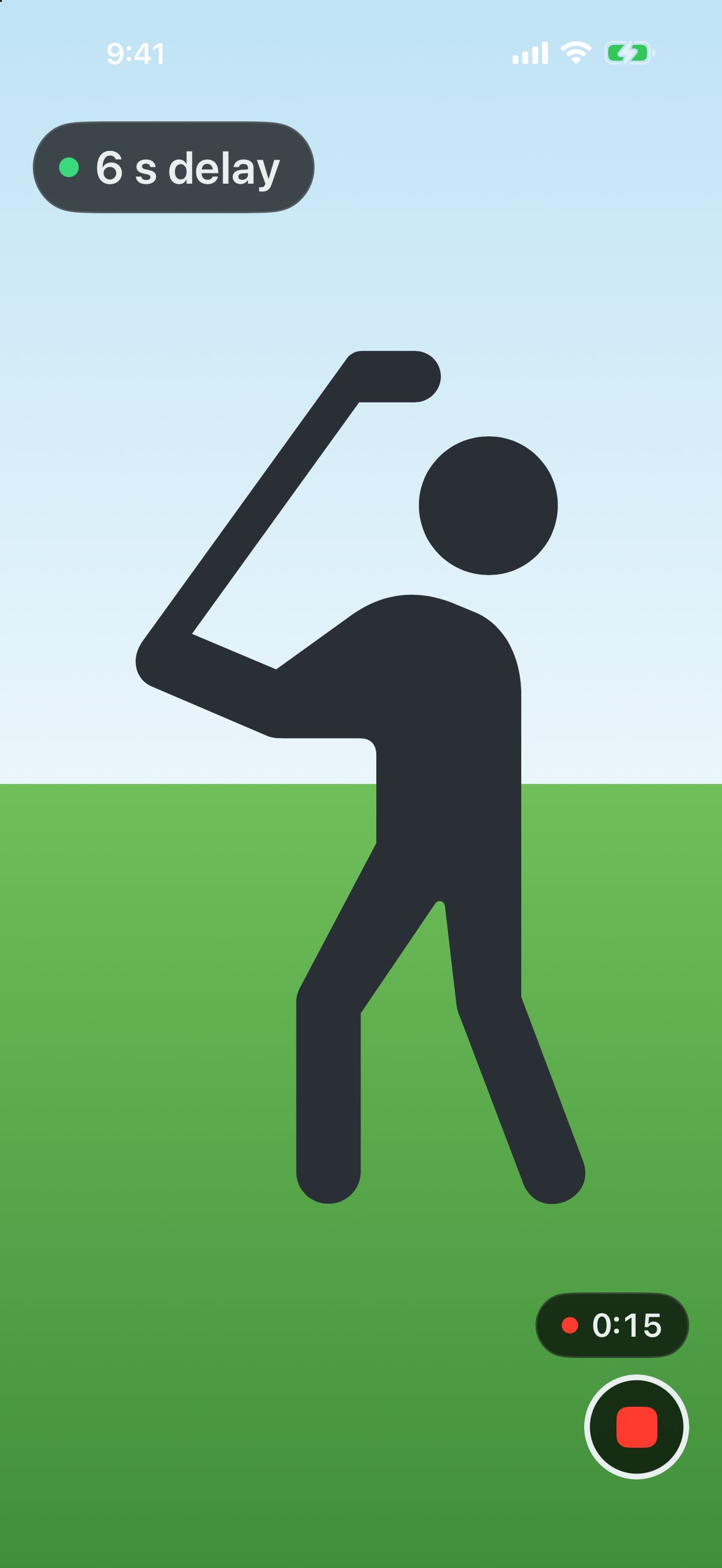
Set your iPhone or iPad on a tripod facing you and swing. When you look up, your swing is already playing on the screen, a few seconds later. No buttons to press between shots.
The idea
Checking your swing on video usually means starting a recording, swinging, walking over to the camera, stopping it, finding the clip and pressing play — every single time. Golf Swing Partner skips all of that. The screen always shows what the camera saw a few seconds ago, so by the time you look up, your swing is already there.
Three steps
Stand your iPhone or iPad on a tripod, facing you, with your whole swing in the frame.
Hit a ball or make a practice swing, just as you normally would. There is nothing to tap first.
A few seconds later, your swing plays on the screen at normal speed. Then tee up the next ball.
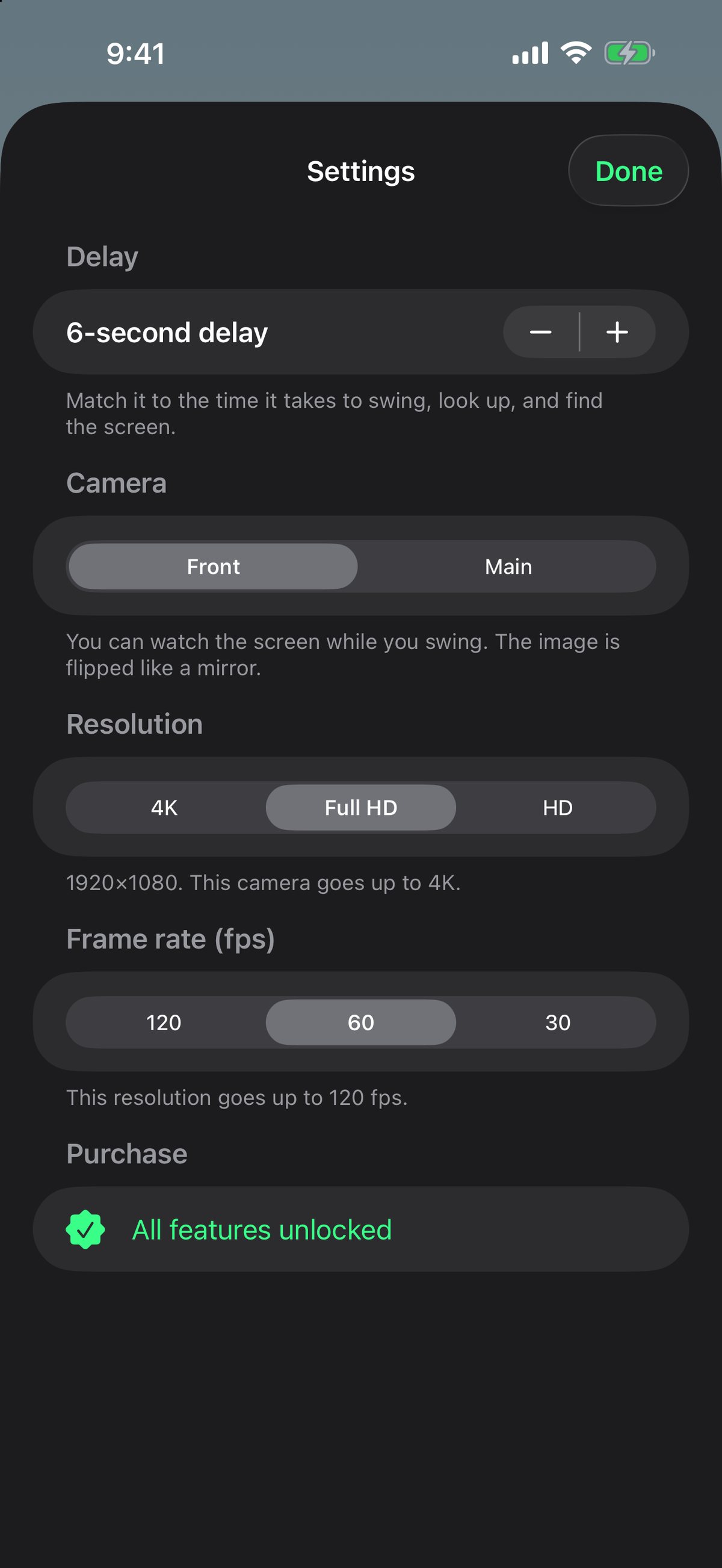
Choose any delay from 2 to 20 seconds — match it to the time it takes you to swing, look up and find the screen. It starts at 6.
Delayed playback
Golf Swing Partner keeps playing what the camera saw a few seconds ago, at normal speed, for as long as you practise. Switch to Live to check your setup, then back to Delay to hit balls.
Camera and quality
Film with the front camera, so the screen faces you, or with the main camera on the back. Resolution and frame rate go all the way up to what your device supports.
Two-device mode
Put one device on the tripod as the Camera and watch on the other as the Monitor — for example, an iPhone filming and an iPad showing your swing on a bigger screen. Two iPhones or two iPads work just as well.
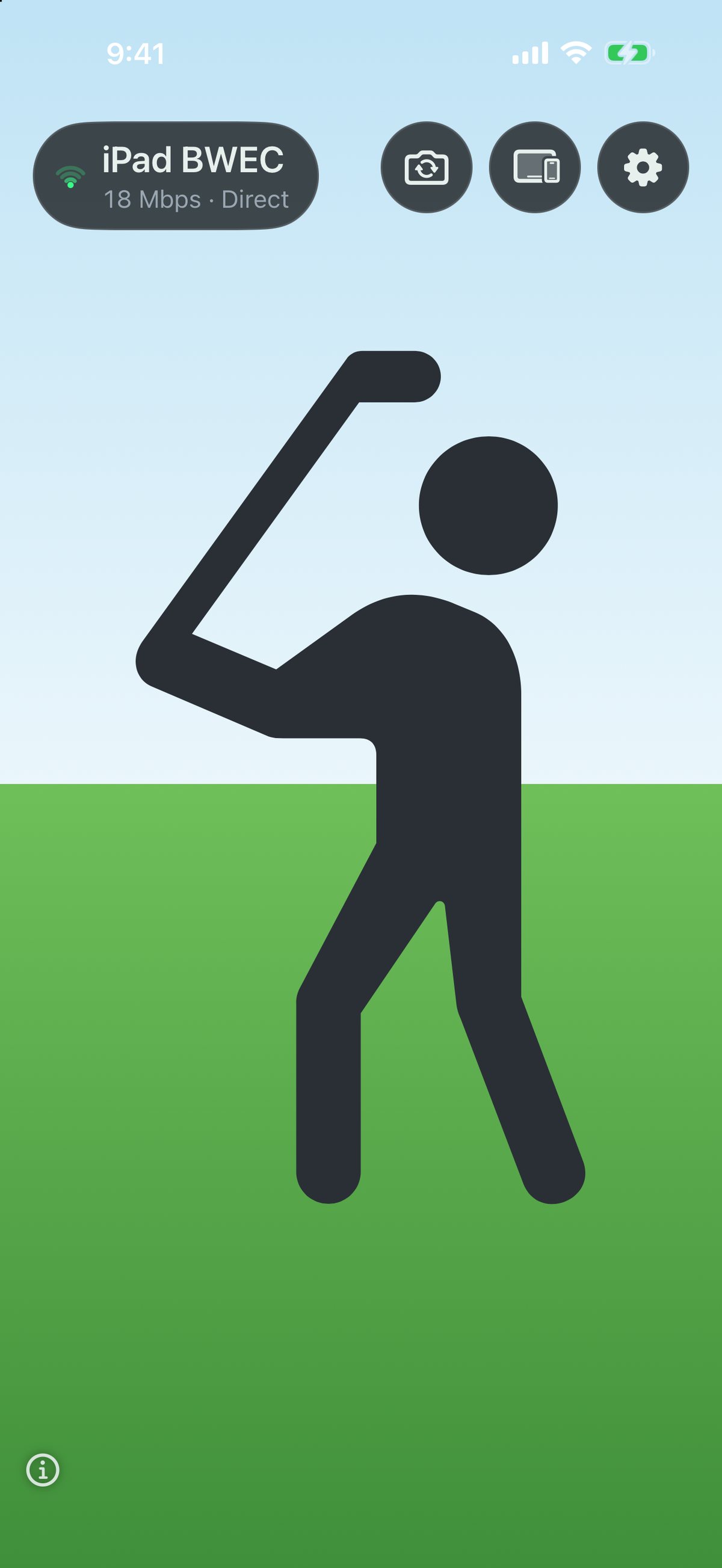
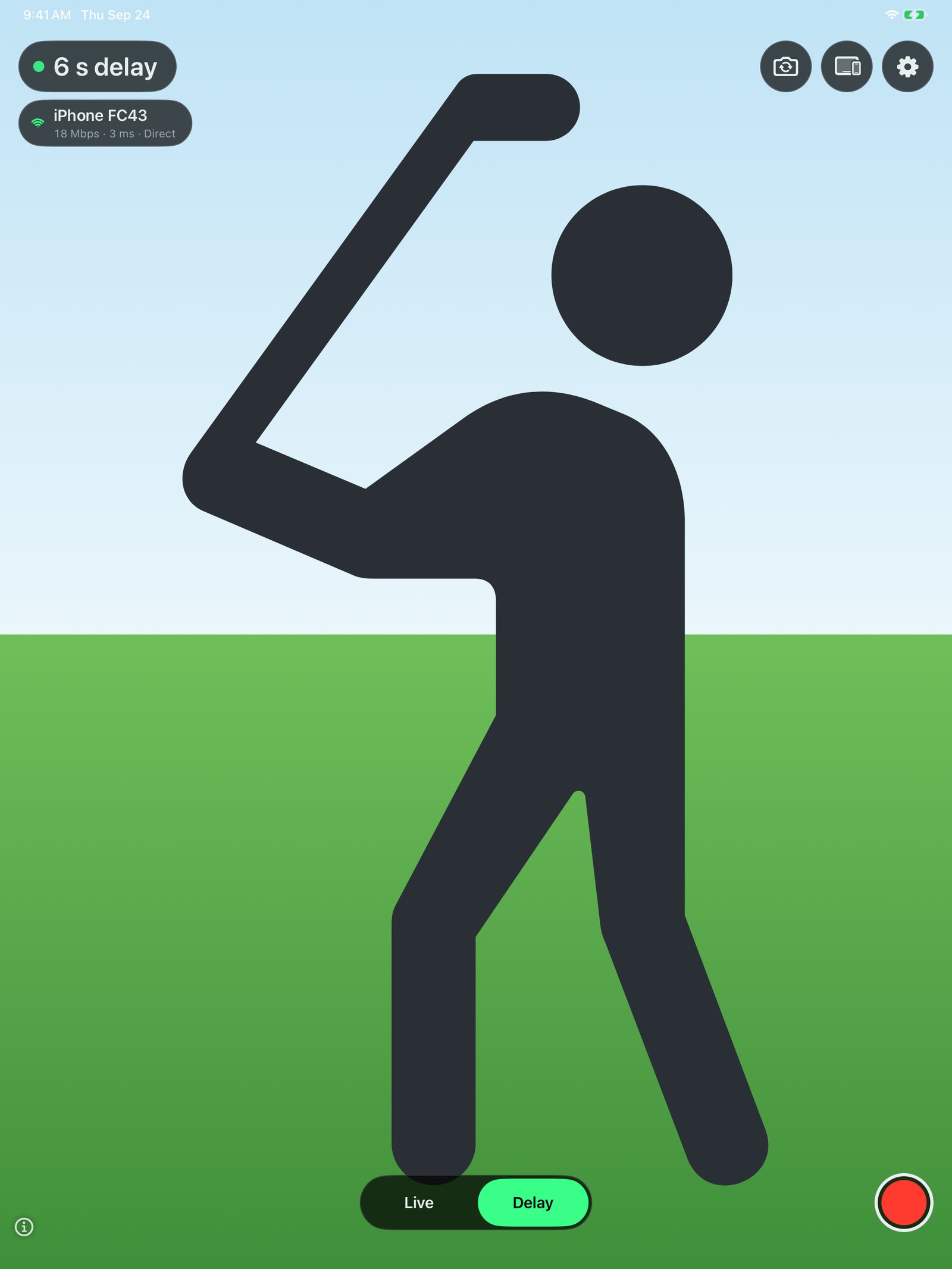
The Camera sends what it films; the Monitor plays it back with the delay you choose.
The two devices connect directly to each other. No Wi-Fi network or router is needed — just turn on Wi-Fi and Bluetooth.
The video goes straight from one of your devices to the other, encrypted. Nothing is sent over the internet.
Enter a 4-digit code the first time. After that, the two devices reconnect automatically.
Change the Camera's settings and zoom from the Monitor, without walking back to the tripod.
The two-device link is free for up to 5 minutes. All Features removes the limit — and if either device has it, the link is unlimited.
Recording
Tap the record button to start and tap it again to stop. The video is saved to the Photos app, so you can watch it again any time. Recording is part of All Features, the one-time purchase.
Privacy
There is nothing to sign up for and nothing to sign in to.
No analytics and no advertising software. The developer collects no data at all.
Video is processed on the device and kept only briefly in memory for the delay. It is saved only when you record — to your own Photos library.
We run no servers for the app. The two-device link goes directly between your two devices, encrypted.
Free, with one optional purchase
Download and practise
$0
One-time purchase
$9
If either of the two linked devices has All Features, the link has no time limit. Restore Purchases is in the app. The App Store shows the price for your region.
No advertising. No account. No data collected.
Supported environment
Questions
Support
Questions about the app, a bug to report, or something you'd like it to do — write to us. We read everything.
Or write directly to support@searedbonito.com